
If your system doesnʼt already have Secure Boot and TPM 2.0 enabled, you may need to make BIOS configuration changes (possibly after a firmware flash for older hardware or self assembled PCs). It may also be the case that your machine does not meet the hardware requirements. The following sections describe the procedure for assessing Secure Boot and TPM 2.0 prerequisites, and making configuration changes needed.
The information that follows is intended to be supplemented with careful consultation of documentation from motherboard vendors. Mistakes can leave a machine in an unbootable state, so exercise caution and be meticulous in following manufacturer instructions. We are not responsible for any system damage due to user action or hardware.
Step 1: Validate that TPM 2.0 is available
Press [Win]+R or select Run from the Start menu. Type tpm.msc in the diaglog and hit Enter or select OK to bring up an application with content pictured below: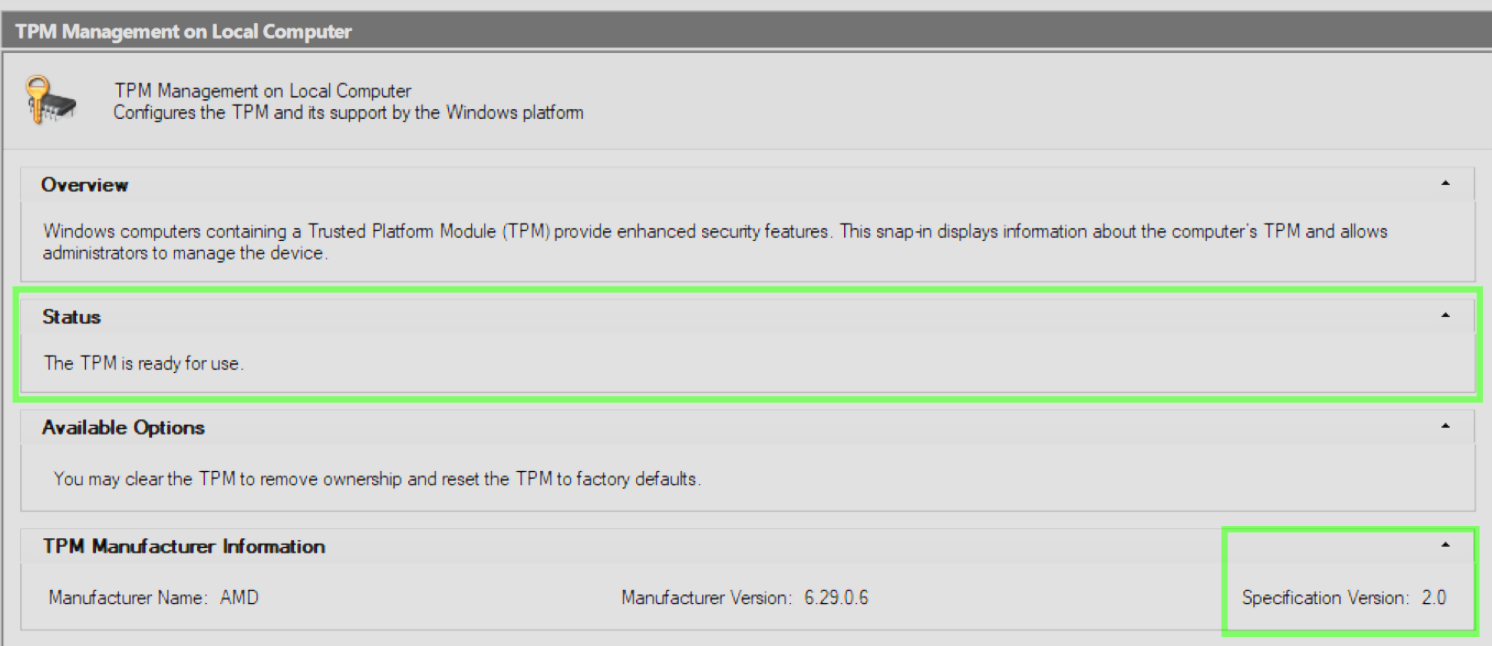
The regions within the green outlines above are the sections to confirm.
If you see a message that says “The TPM is ready for use” along with “Specification Version: 2.0” as pictured above, TPM 2.0 is set up correctly and you may proceed toStep 2.
If you see a message that says “Compatible TPM cannot be found,” you’ll need to determine if TPM 2.0 is available on your PC, and enable it in the BIOS if so (seeStep 1a). If you see a specification version lower than 2.0, you may need to flash the motherboard firmware. SeeStep 1b for advice on doing this.
Step 1a (if needed): Enabling TPM 2.0 on supported devices
You’ll need to do this step if the previous step indicated that a compatible TPM was not found.
For most motherboards, accessing the BIOS configuration menus is done by pressing a key shortly after the machine powers on. Common keys includeDel,F2,F10, and so on. The boot screen will typically indicate the key input needed.
The TPM settings are typically found in the “Security” or “Advanced” menu subsections. After enabling TPM, you’ll need to save the settings and exit (F10 is a key that does this for many vendors). The exact setting name and location will vary based on motherboard vendor and CPU type. For Intel systems, the setting may be referred to as PTT, and on AMD systems, the setting may be referred to as fTPM.
Here are some potentially useful references to consult, by manufacturer:
ASUS:
How to enable or disable Secure Boot? https://www.asus.com/us/support/faq/1046215/
ASRock
TPM2.0 module is required in Windows 11 specification, does it need TPM 2.0 hardware module? https://www.asrock.com/support/?Model=TPM+2.0
Note: this page also indicates how to enable TPM 2.0 for ASRock Intel and AMD motherboards.
Some new games … require Secure Boot and TPM 2.0 to provide kernel level anti cheat protection. How do I enable these options on ASRock AM4 motherboards? https://www.asrock.com/support/faq.asp?k=secure+boot
Biostar
How to Setup BIOS for Windows11 in BIOSTAR MOTHERBOARD https://www.biostar.com.tw/app/en/support/faq_content.php?S_ID=809
Dell and Alienware
How to Enable TPM 2.0 on Dell Computers for Windows Security https://www.dell.com/support/kbdoc/en-us/000189676/windows-10-how-to-enable-the-tpm-trusted-platform-module
EVGA
How to Enable Trusted Platform Module(TPM) in your EVGA Motherboard BIOS https://www.evga.com/support/faq/faqdetails.aspx?faqid=59812
Gigabyte
How to Enable Secure Boot and TPM 2.0 on GIGABYTE AM4 300/400/500series & sTRX4 TRX40series Motherboards https://www.gigabyte.com/Support/Consumer/FAQ/4395
MSI
How to Enable TPM on MSI Motherboards Featuring TPM 2.0 https://www.msi.com/blog/How-to-Enable-TPM-on-MSI-Motherboards-Featuring-TPM-2-0
How to Enable Secure Boot and TPM 2.0 on MSI AM4 Motherboards https://www.msi.com/blog/how-to-enable-secure-boot-and-tpm-2.0-on-msi-am4-motherboards
Step 1b (if needed): Upgrading BIOS firmware
You’ll need to do this step on a case-by-case basis if your TPM specification version was not marked as 2.0, or if you were unable to successfully enable TPM 2.0 viaStep 1a. If so, first double check that all pending system updates (including optional updates) are installed. Some system manufacturers can update BIOS firmware over-the-air via the Windows Update system.
If a Windows Update didn’t perform the firmware update needed, you’ll need to consult your motherboard manufacturer’s documentation to perform the update manually. The typical process is to transfer the updated firmware software to a USB drive and apply the update in the BIOS menus.
To identify your motherboard model, Press[Win]+R or selectRun from the Start menu. Typemsinfo32 in the dialog and hitEnter or selectOK to bring up theSystem Information window shown below.
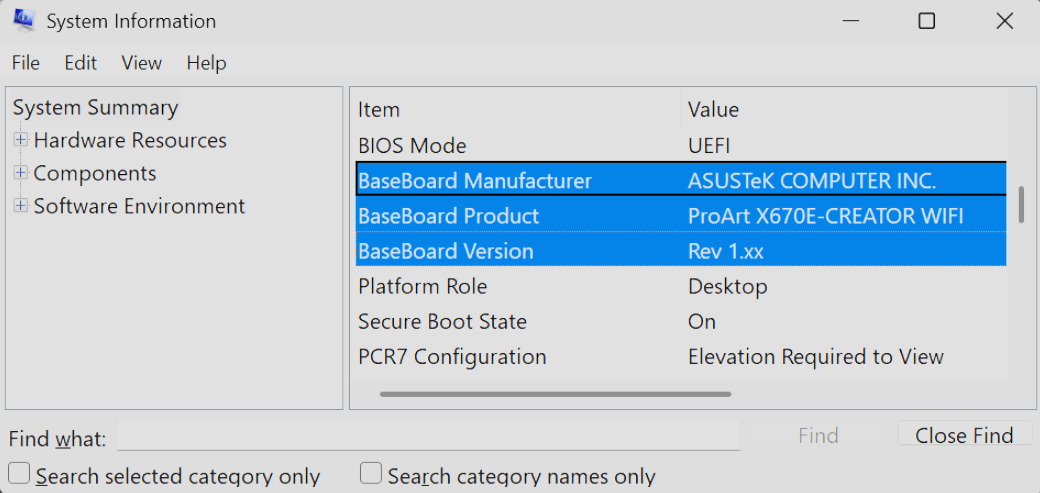
Pictured above are example entries for the motherboard (aka “BaseBoard”) manufacturer, model, and version.
Updating the firmware for each vendor is different, so you should use this information to locate the relevant documentation. After an upgrade, refer back toStep 1a as needed to ensure TPM 2.0 is enabled.
Step 2: Validate Secure Boot standing
Press [Win]+R or select Run from the Start menu. Type msinfo32 in the dialog and hit Enter or select OK to bring up the System Information window show below.
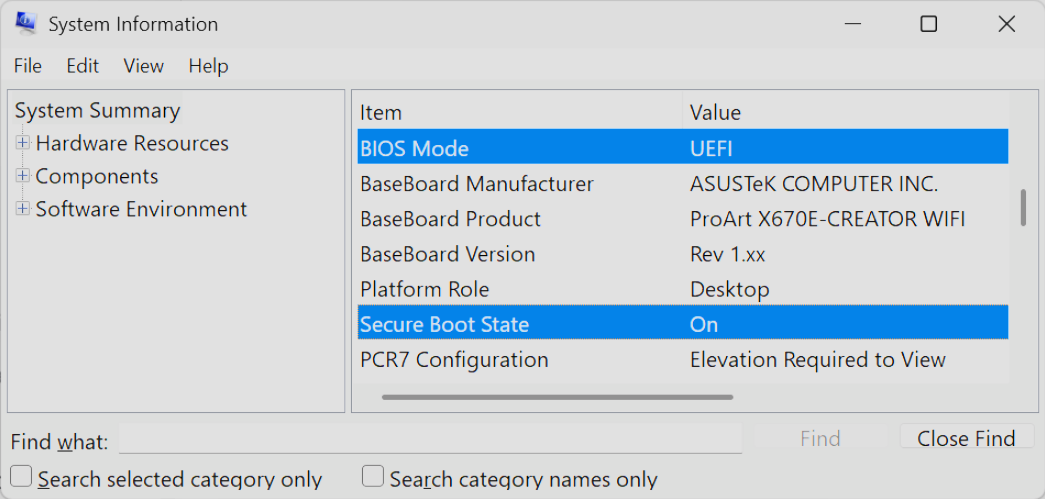
Pictured above is the desired configuration, and if you see that both the BIOS Mode is UEFI and the Secure Boot State is On, you’re all set and no changes are needed.
If the BIOS mode is set to Legacy, you may need to change your Windows disk partition style to GPT (refer toStep 2a).
Once you’ve ensured the BIOS mode is set to UEFI, if the Secure Boot State is “Off”, you’ll need to enable this setting in the BIOS (refer toStep 2b).
Step 2a (if needed): Validate that Windows disk partition style is GPT
You’ll need to do this step if the BIOS mode value indicated above was “Legacy” before attempting to enable Secure Boot. Most modern machines will not need to perform this step.
Press [Win]+X or right-click theStart button and selectDisk Management to start an application pictured below.
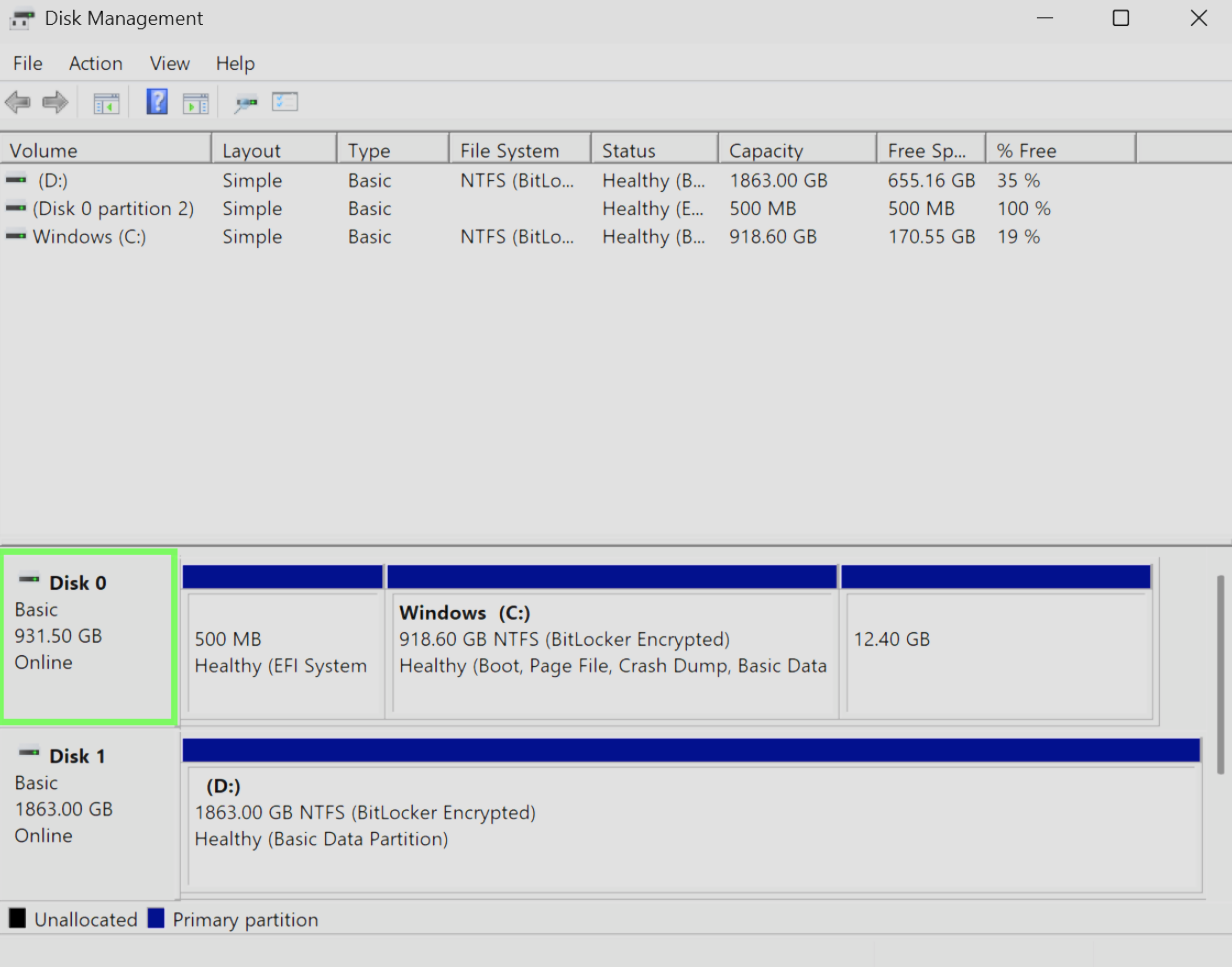
Identify the disk associated with your Windows installation. This is indicated above in green region. Many systems may only have one disk, but some may have two or more depending on the hardware you have installed.
Right click the disk and selectProperties. Then, select theVolumes tab to view the property window below.
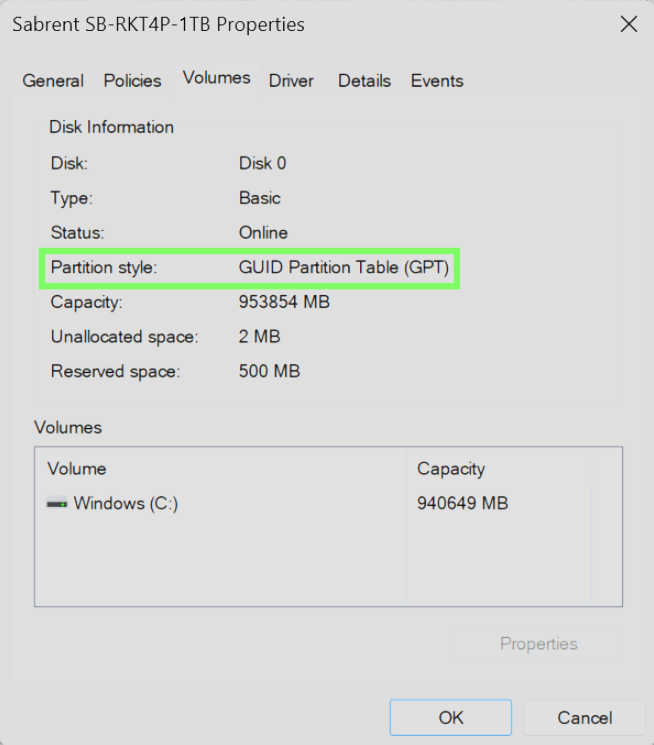
If the partition style is indicated as GPT as pictured in the green region, no further disk management steps are necessary.
If, however, the partition style is MBR, you will need to convert the partition style to GPT. Consult the video and documentation in the official MBR-to-GPT guide from Microsoft here. Users are encouraged to backup data prior to any disk-related operations.
Step 2b: Enable Secure Boot in BIOS
For most motherboards, accessing the BIOS configuration menus is done by pressing a key shortly after the machine powers on. Common keys includeDel,F2,F10, and so on. The boot screen will typically indicate the key input needed.
Next, locate and enable theSecure Boot setting. This will commonly be found in theBoot menu section, but consult the vendor documentation as needed.
After enabling Secure Boot, save your settings and exit.
If after confirming that Secure Boot and TPM 2.0 are enabled, Highguard is still not playable, you likely will need to update your BIOS firmware to patch a vulnerability affecting your system. Please consult your vendor documentation and refer to Step 1b for advice on doing this.
For your convenience, here are some links that may be useful, segmented by manufacturer:
ASUS
How to enable or disable Secure Boot? https://www.asus.com/us/support/faq/1049829/
ASRock
My software requires Secure Boot to be enabled. How can I set it up? https://www.asrock.com/support/faq.asp?id=531
Some new games … require Secure Boot and TPM 2.0 to provide kernel level anti cheat protection. How do I enable these options on ASRock AM4 motherboards? https://www.asrock.com/support/faq.asp?k=secure+boot
Biostar
How to Setup BIOS for Windows11 in BIOSTAR MOTHERBOARD https://www.biostar.com.tw/app/en/support/faq_content.php?S_ID=809
Dell and Alienware
How to Enable Secure Boot on Dell Devices for Windows 11 https://www.dell.com/support/kbdoc/en-us/000190116/how-to-enable-secure-boot-on-your-dell-device
EVGA
Does my motherboard support Secure Boot? https://www.evga.com/support/faq/FAQdetails.aspx?faqid=59388
Gigabyte
How to Enable Secure Boot and TPM 2.0 on GIGABYTE AM4 300/400/500series & sTRX4 TRX40series Motherboards https://www.gigabyte.com/Support/Consumer/FAQ/4395
MSI
How to Enable Secure Boot and TPM 2.0 on MSI AM4 Motherboards https://www.msi.com/blog/how-to-enable-secure-boot-and-tpm-2.0-on-msi-am4-motherboards